New Reading and Display Features
Table of Contents
Introduction
I recently implemented several fun new features on my site: dark mode support, a sidebar table of contents when the browser window is sufficiently wide, HDR support, and justified text layout using a custom high-performance implementation of a simplified version of the Knuth-Plass algorithm. Over the past several years I’ve put occasional effort into dragging my site into the modern day with things like responsive layouts for different screen/windows sizes and a unified design across my blog and portfolio to both improve visual consistency and make maintenance and development easier. These latest changes build on top of that previous work to finally do some things that I think are fun and interesting and new, while still keeping the design of the site grounded and reasonably restrained.
I’m not much of a designer or a web developer, so I might not have the best sense of this, but I think that in terms of how interesting each new feature is: the dark mode support is relatively pedestrian, the sidebar table of contents has some nifty tricks in it, the HDR support is relatively cutting edge, and the Knuth-Plass-style justified text layout is on the novel side in the web space. In this post, we’ll go through each one of these.
Dark Mode
I have wanted to add a dark mode for a long time now, but implementing dark mode never percolated high enough to the top of my priority queue to get around to it until recently. Now that my wife and I have a toddler though, my hobby project time has shifted pretty much 100% to at night after my kid is asleep, which means any time I work on a blog post or something and want to preview how the post looks on the site, I’m looking at the site at night with lights in the house either set to low or off. After working on the site and getting blinded at night by my own site’s bright white theme one too many times, dark mode went right to the top of the priority queue, and here we are:
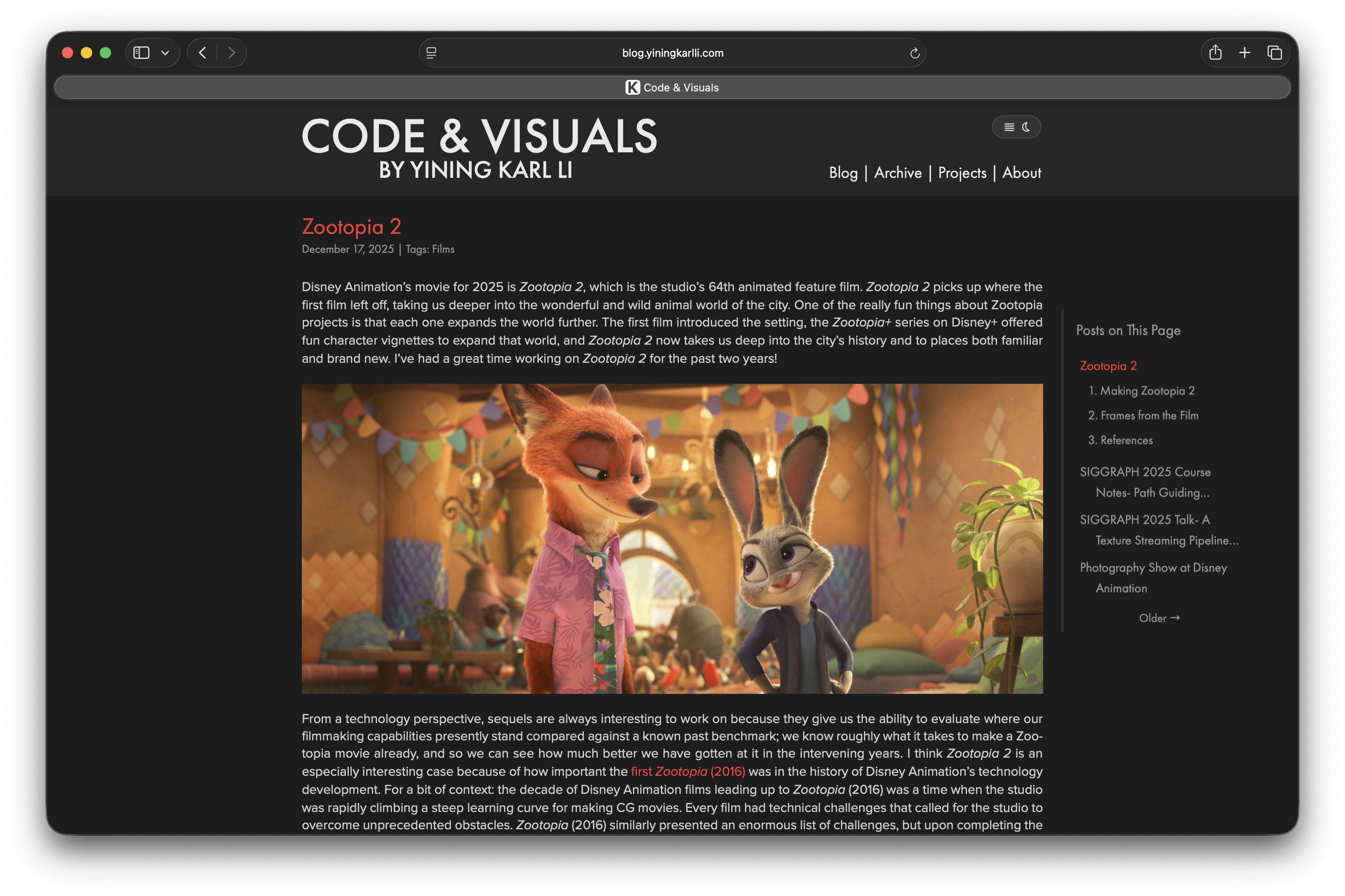
The reason why I previously kept putting off implementing dark mode for my site is because of a problem of my own making: as I’ve written about before, for historical reasons, this website is in fact two separate sites running on two completely different backends and tech stacks. Last year I put a bunch of work into completely unifying the design and navigation system for both halves of the site such that to the reader they present as a seamless, unified whole, but under the hood the two halves of the site were still using different layout systems with completely separate stylesheets that were meticulously implemented to produce matching results. In retrospect I should have just ported one of the halves to use the same layout and stylesheet and everything as the other half to make a truly unified system; making the two separate implementations match took way more work than I had initially hoped, and even then there were still inconsistencies in some places. On top of all of that, making any sitewide change required doing the whole matching process again. Implementing dark mode this way sounded like an awful slog, so I just didn’t do it. In order to make implementing dark mode way easier, the first thing I did was finally port the portfolio half of my site to use the same layout and stylesheet as the blog half of the site. The portfolio site still isn’t on Jekyll on the backend, but at least all of the HTML/CSS/JS stuff is exactly the same between the two now, so I only had to implement the dark mode changes a single time.
The dark mode system is implemented in four major parts: CSS properties, theme-aware media, theme settings storage/loading, and the theme settings UI.
The CSS properties part is super standard; in the site’s CSS file, the light and dark themes are defined as custom property sets, with the light theme as the default :root set and the dark mode theme just overrides all of the same variables.
All of the site’s various selectors then just consume these via CSS’s var() function.
To set which theme the site should select, the site’s Javascript simply sets the theme as an attribute on the root html element, which then flows down to everything else.
There’s absolutely nothing remarkable about this approach, and as far as I’m aware this is one of the bog-standard way to implement a dark mode unless you’re using something insane like Tailwind CSS.
This approach isn’t as fancy as the modern approach using the light-dark() CSS function, but the nice advantage of this approach is that it allows for manual selection of the theme instead of just relying on auto-matching the system theme.
The hardest bit of implementing this part was picking out good colors for the dark mode theme.
Since the light theme for the site is already all greyscale with red accents, the easiest thing to do would have been just to invert the lights and darks, keep the same red accents, and call it a day.
However, I found that this actually looked terrible; the light mode site uses a pure white background with extremely dark grey (but not quite fully black) text; inverting this produces a pure black background with light grey text, which to me looked pretty bad, and swapping instead of inverting produces pure white text on a dark grey background, which somehow was both blinding and felt like it lacked contrast.
The light mode site’s red accents use pure #ff0000 red, and I found that using this in dark mode was also way too bright.
Since the whole point of the dark mode is to be easier on the eyes in a dark setting, I found that the best approach was to mute down the brights while preventing anything from going pure black.
Dark themes generally should have lower contrast than light themes in order to reduce eye strain, and this is because a small amount of bright objects on a dark background is perceived by the human eye as having more contrast than if the bright and dark were simply swapped on the same setup.
So, the dark mode for this site uses very light grey text on a darker grey background, and for the dark mode, instead of using #ff0000 red for accents, I chose a less bright #ee3333 red that is closer to being a strawberry color without going too much into pink.
Here is a comparison of the light and dark mode themes:
The most time consuming step was implementing theme-aware media.
I went through my entire blog archive and all of the pages in the portfolio to find every image that would also need to be adapted for dark mode.
Most images on my blog are renders or photos that don’t need to be adapted, but there’s also various posts and pages with screenshots, diagrams, and figures from papers that are on white backgrounds.
These looked terrible against the dark mode theme, so for every one of these images, I made a new dark mode version.
Dark mode versions either have a transparent background or a solid background color-matched to the dark mode background grey, and in many cases I had to also swap out text and outline colors to work on the dark mode background.
Light and dark mode media are specified as attributes on img and iframe elements, and the site’s Javascript looks for these attributes and swaps them in for the element as appropriate based on the theme.
Most sites that I’ve seen with light/dark mode tend to allow users to pick which theme to use via a two-way switch.
However, in my opinion, a two-way switch is incorrect and the true correct solution is a three-way switch between light, dark, and auto, where auto matches whatever the system theme is and is the default choice.
I usually prefer sites to follow the system theme, but sometimes I want to be able to manually pick something that doesn’t match the system.
This site’s Javascript resolves the theme on auto mode via window.matchMedia('(prefers-color-scheme: dark)'); otherwise the resolved theme is just the user’s explicit light or dark mode choice.
In order to remember the reader’s theme choice, the site uses a minimal shared cookie.
Needing a cookie here is unfortunate; I used to have a statement on the site’s colophon proudly declaring that the site uses no cookies whatsoever, but now this is no longer true and the colophon has been updated accordingly.
I had originally hoped to remember theme settings by just using localStorage, but because the site is spread across two subdomains and localStorage is local per subdomain, a localStorage based solution would mean that settings won’t work across both halves of the site together.
Instead, a shared cookie set for all subdomains of the site is the only workable solution that also allows the site’s backend to remain completely static and stateless.
The shared cookie is set and read only locally by the site’s Javascript and is never read, used, or tracked by the server.
One tricky detail about my approach to implementing light/dark mode is that all of the Javascript stuff to set an attribute on the root html element has to happen before CSS is even loaded, otherwise the page can flash the default theme first briefly on load before repainting with the user’s saved theme.
So, I directly inlined a small minimal theme loading script into each page’s header that runs synchronously before CSS load and takes care of reading the user’s settings from the shared cookie and setting the theme attribute.
This snippet is directly inlined into the page to prevent needing an additional render-blocking request on page load, which would be required if it were a separate small file.
The bulk of the dark mode system, such as the theme-aware media swapping, is then implemented in the site’s main Javascript file.
Coming up with a UI I liked for a three-way light/dark/auto mode switch took some experimentation. One downside of a three-way switch is that there aren’t as many ways to keep the design as clean as a two-way switch. A two-way light/dark mode switch can be implemented with a single button that simply swaps the state, but in my opinion, a single button that rotates between three states hides too much state to be discoverable or useful. However, I also didn’t want to clutter up the overall design of the site with three always-present buttons or a big three-state toggle; I like the idea that UI should be as explicit and clear as possible when needed, but otherwise recede and not call attention to itself when not needed. One approach I tinkered with was to put a three-way switch in the site footer, but I quickly abandoned that idea since burying the switch in the footer means that very few users who might want to use such a switch will ever actually find it, or will only find it after they’re finished reading instead of before. The solution I eventually arrived is to use an expanding “pill” in the site header which stays small and minimal when not needed and expands on mouse hover. In its closed minimal state, the pill shows only symbols for the currently active theme and text justification settings on the site, and on mouseover, the pill expands to show the full three button switch for light/dark/auto mode and a two button switch for text justification. Once the mouse leaves the expanded pill, the pill collapses back to its minimal form. On touch devices without mouse hover states, the pill expands and closes on tap. For accessibility users, the pill also opens on focus into the control and closes on hitting the escape key or focus leaving the control.
Under the hood, the pill is implemented entirely in Javascript; even its HTML elements are injected into the page by Javascript instead of being inlined into the page. Compared with how the rest of the entire site is implemented, this all-Javascript approach is somewhat unusual, but I found that for something with this much animation and interaction, working entirely in Javascript was the most conducive approach for quick prototyping. Implementing the pill entirely in Javascript also made porting it between the blog and portfolio halves of the site really easy; all I had to do was sync the main Javascript file from one to the other without needing to touch any HTML template stuff. All of the animation for the pill opening and closing is just implemented through some simple CSS fades and slides.
Sidebar Table of Contents
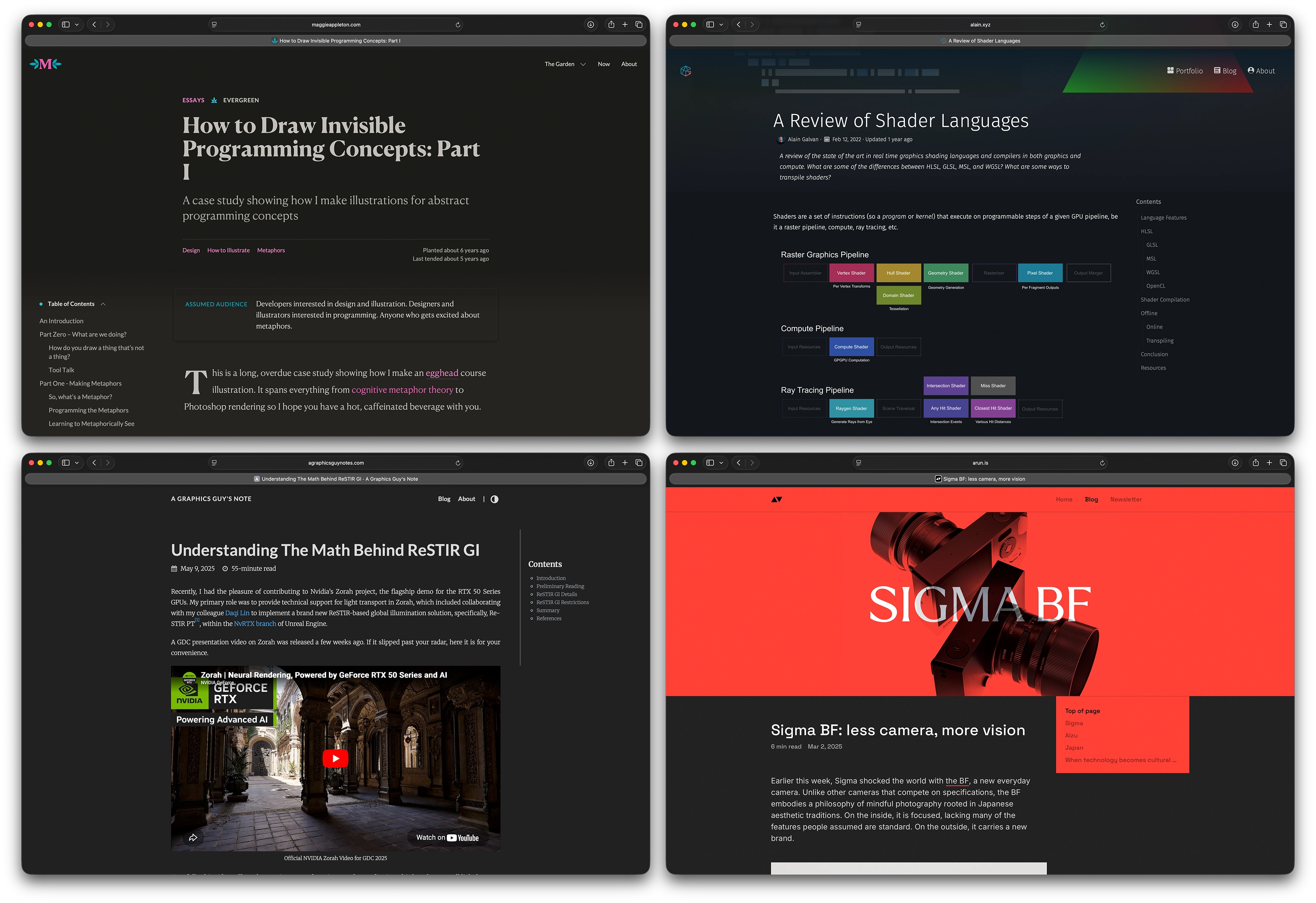
A few years ago I started adding tables of contents to longer blog posts and project pages. I added the table of contents per post or page as just a section at the very top of the page, using up to three columns depending on how much space was required. Just sticking the table of contents at the top of each post or page was the simplest possible solution and nicely mirrors print solutions, but I started noticing some sites using a neat pinned sidebar table of contents when the browser window is wide enough. Here are a few of my favorite examples from some blogs that I keep up with:
Another solution I have seen on a lot of sites is a floating sort of combo progress indicator and chapter selector pinned to the top of the window. I’m personally not a big fan of this approach; typically on desktop monitor, vertical space is at a premium, and on smaller mobile devices, any space at all is at a premium, so taking up valuable vertical space with any kind of floating pinned UI seems wasteful to me. I got rid of my site’s pinned navbar a few years back for this very reason.
I think most types of pinned floating UI are basically nice to haves when there is enough space, and I think that definitely applies to a table of contents. Even in ebook readers, the table of contents is a UI element that is typically hidden or tucked away off to some side until needed. So for my site, my approach is that the sidebar table of contents should only show up and replace the top-of-page table of contents when the window is sufficiently wide enough that there’s plenty of extra space in which we can fit a sidebar in a nondisruptive way. In narrower windows, the table of contents simply stays at the top of the page.
The design of my sidebar table of contents implementation is pretty simple. On individual blog posts and project pages, the sidebar table of contents simply lists all of the sections on the page, and the section the reader is currently on automatically gets highlighted in the site’s red accent color. On multi-post pages, such as the blog’s landing page and chronological back catalog, the sidebar table of contents shows the title of each post on the current page, and expands to include all of the sections for whichever post the reader is currently on. Any title or section in the sidebar table of contents is truncated after two lines, unless that entry is the active highlighted section, in which case the sidebar table of contents allows the title or section name to be fully expanded out over as many lines as needed. All of the expands and contracts and entries highlighting and whatnot are carried out with some nice simple animated slides and fades and whatnot. One of my favorite small details is that if the sidebar table of contents is too tall to fit in the current viewport, the parts of the sidebar that run off of the viewport fade out gradually instead of having a hard cutoff.
While the design is kept pretty simple, the technical implementation under the hood has quite a bit of complexity to it.
Most of this complexity comes from the sidebar table of contents system having to support effectively three different input data models.
For individual blog posts that already have a table of contents at the top of the post, the system simply has to read the existing table of contents and construct the sidebar from that.
However, for my personal project pages, I don’t have a table of contents at the top of the project pages and I don’t want to add them either because I don’t think having a table of contents at the top fits well with the designed presentation of those pages.
For those pages, the sidebar table of contents system instead has to go through the entire page and pull out all of the major section headings in order to construct the sidebar.
For multi-post pages, the system has to find every post on the page and then for every post that has a table of contents, that information needs to be extracted as well.
Which data model the sidebar system has to run on top of is specified by what class the page’s body element uses.
Figuring out what entry in the sidebar table of contents to highlight as active is done via a custom scrollspy implementation.
For all three page types that can have a sidebar table of contents, the scrollspy system is the same, but with different trigger behavior depending on page type.
For single-post and portfolio pages, the system first builds a list of section DOM elements and their corresponding sidebar DOM link element.
The current scroll position is then used to decide which section is currently active, with active defined as the last tracked section whose top has passed a small threshold from the top of the visible viewport.
For multi-post pages, some extra work is needed: the system first tracks which post is currently being actively viewed by checking which .post class contains the vertical midpoint of the viewport.
Within each post, the same logic that single-post and portfolio pages is used to determine the active section.
To prevent this system from being too computationally intensive to run, the whole system doesn’t run on every scroll event.
Instead, the system is debounced so that it only runs after scrolling has paused for 50ms; otherwise, the system would have to do super expensive DOM reads for every pixel of scroll, which would be super laggy.
The way clicking to smoothly scroll to a section is implemented is that the system requires sections be manually assigned a unique id when I write a post or project page.
When a sidebar table of contents link is clicked, the system figures out the appropriate element id from the link, queries the DOM for the matching anchor div via the usual document.getElementById() call, calculates the offset from the current location to the anchor div, and feeds that into a 300ms jQuery smooth scroll animation.
I originally had clicking on sidebar table of contents links jump immediately to the target section, but felt that the immediate jump was kind of disorienting.
I found that an animated scroll helped a lot, but I didn’t want to make the scroll waste a huge amount of time, so it’s kept basically as fast as I was able to make it without it feeling disorienting as well.
For now the entire sidebar table of contents system is only available when the browser window is at least 1400 pixels wide, which admittedly is pretty wide. I experimented with various approaches to make the sidebar table of contents work on narrower windows, but doing so inevitably requires either making the body text narrower, making the sidebar narrower, or keeping the widths the same but shifting the body text left off of the center. I didn’t like any of these approaches; the sidebar is meant to be an additive helper to the body content, but the content really is the focus of the page, not the sidebar nav, so taking away any width from the body content is not the right approach. For the same reason I also don’t like shifting the main body content off of being centered on the page. Making the sidebar narrower is the only solution that doesn’t require taking away focus from the body content, but a super narrow sidebar both doesn’t look particularly nice and isn’t very useful as a practical navigation tool. At some point if I think of a better way to make the sidebar work on narrower and mobile layouts, I’ll extend it to do so, but until then, I’m happy with leaving it as a nice bonus navigation tool when the window is wide enough to be able to afford the space.
HDR Support
Over the past few years, native browser support for displaying HDR images and video has finally started to take off1. As of writing, the latest versions of Safari and Chrome have extensive support for HDR video playback and for various gain map based HDR image formats; Firefox lags somewhat behind but is starting to implement support as well. HDR display hardware (Apple calls these XDR displays, for Extreme Dynamic Range) has also been getting more widespread, with most iPhones and flagship Android phones today shipping with 1000+ nit HDR-capable displays, Apple shipping iPad Pros, MacBook Pros, and some desktop displays with 1000+ nit HDR-capable displays, and various other PC companies shipping HDR-capable laptops and displays as well. Overall, I wouldn’t call HDR display capability universal just yet, but it’s certainly no longer the rarity that it was even five years ago.
With all of that in mind, starting a couple of years ago, I moved my entire photography processing workflow and my entire hobby CG art post-production workflow to be HDR native and now I export both SDR and adaptive HDR versions for all photos and hobby CG art (the details of which I’ll write about some other day). Last spring when I wrote a post about a small photo show I did, I wanted to try adding an HDR option for readers with HDR display capabilities. However, at the time, there was a wrinkle to actually displaying HDR images in the browser: while Chrome supported displaying adaptive HDR JPG files natively, Safari didn’t (Safari only gained support with macOS/iOS/iPadOS 26 at the end of last year). Safari did support HDR videos already though, which provided a (somewhat hacky) opening. The solution for Safari was to display a single-frame HDR video wherever an HDR image was needed. I learned this trick from Pixelmator’s development blog, where they used this trick to display HDR images when they announced HDR support in Pixelmator Pro 3.5. Pixelmator Pro includes a single-frame HDR video export option for HDR images for this specific reason!
Today, newer versions of Safari (version 26 and up) and Chrome (version 1160 and up) support displaying gain-map HDR images in a variety of formats (most commonly JPEG, HEIC, and AVIF), which is a lot nicer and easier to work with than single-frame HDR videos.
So, as of writing, the current version of this site’s HDR display system makes use of gain-map JPEG and AVIF files whenever possible.
However, because these versions (or newer) of Chrome and Safari are still making their way to near-universal adoption, I still also keep a single-frame HDR video fallback path for older browser versions that have HDR video support but not HDR still image support.
So, wherever I want an HDR image, the HTML has to contain three images, each in their own div with a specific label: a SDR still image with div class name sdr, a HDR gain map based still image with div class name hdr, and a single-frame HDR video with div class name hdr-video.
Both HDR options set to style="display: none" by default.
Because just naively displaying HDR images or video on a non-HDR-capable display can result in washed out colors and clipped highlights and stuff, I implemented a simple check for HDR display capability before giving readers the option to enable HDR display on the site.
The check is carried out by simply calling window.matchMedia("(dynamic-range: high)"), which returns whether or not the display the browser window is currently on supports HDR.
If this check fails, the site just falls back to SDR-only display and enables HTML elements with a class attribute of hdr-disabled; this allows for displaying a short message to the reader about HDR display status.
If the check succeeds, then the site displays a toggle for enabling/disabling HDR content.
Under the hood the toggle is just a checkbox, but made to look like a nice round animated toggle-switch entirely through CSS.
The toggle is always there, but by default its style is set to display: none.
I originally considered just making the site always display HDR if the HDR check passes, but I think that giving the option to switch back and forth between the HDR and SDR images is a neat feature for showcasing the difference good HDR color grading makes.
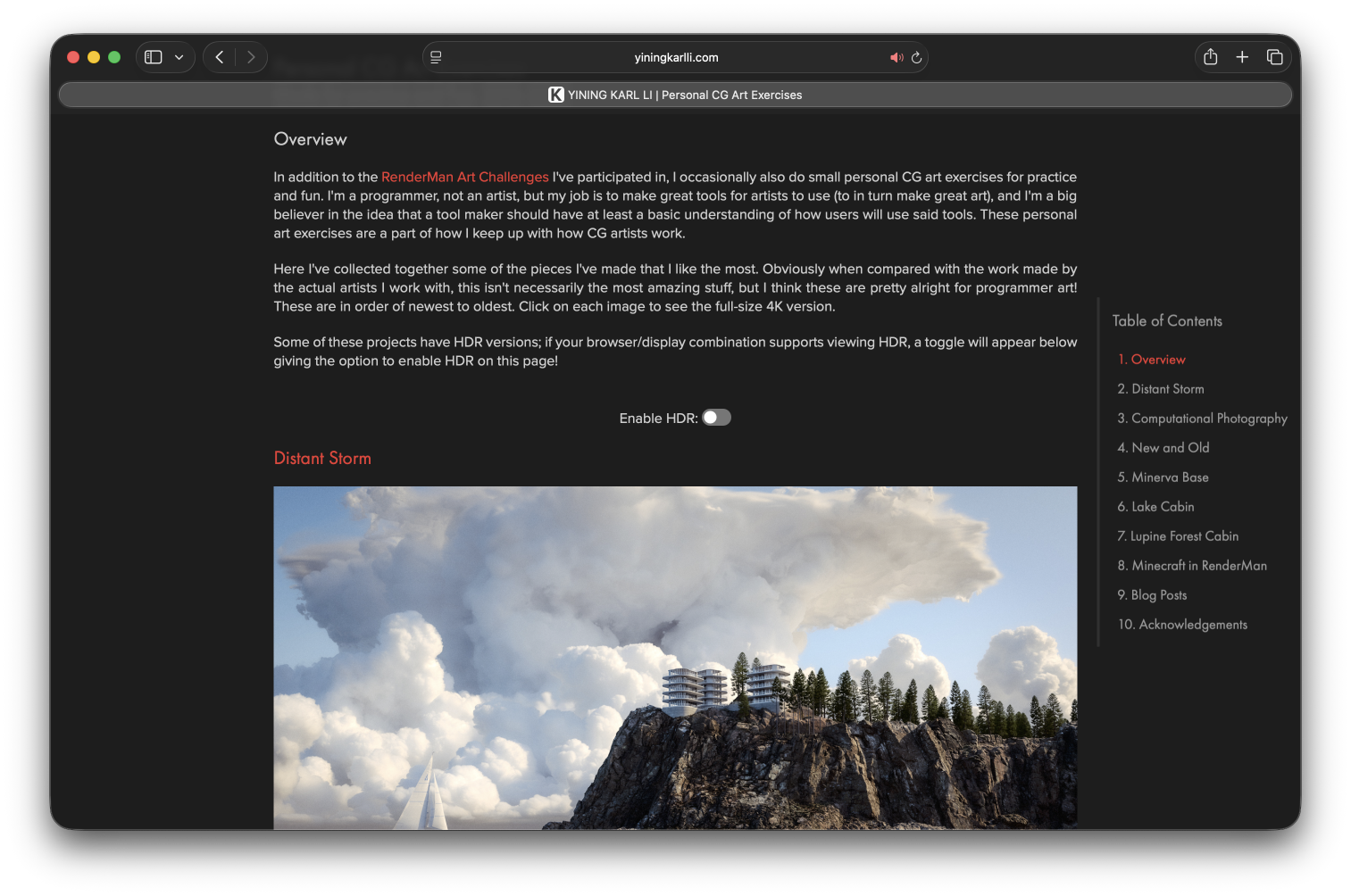
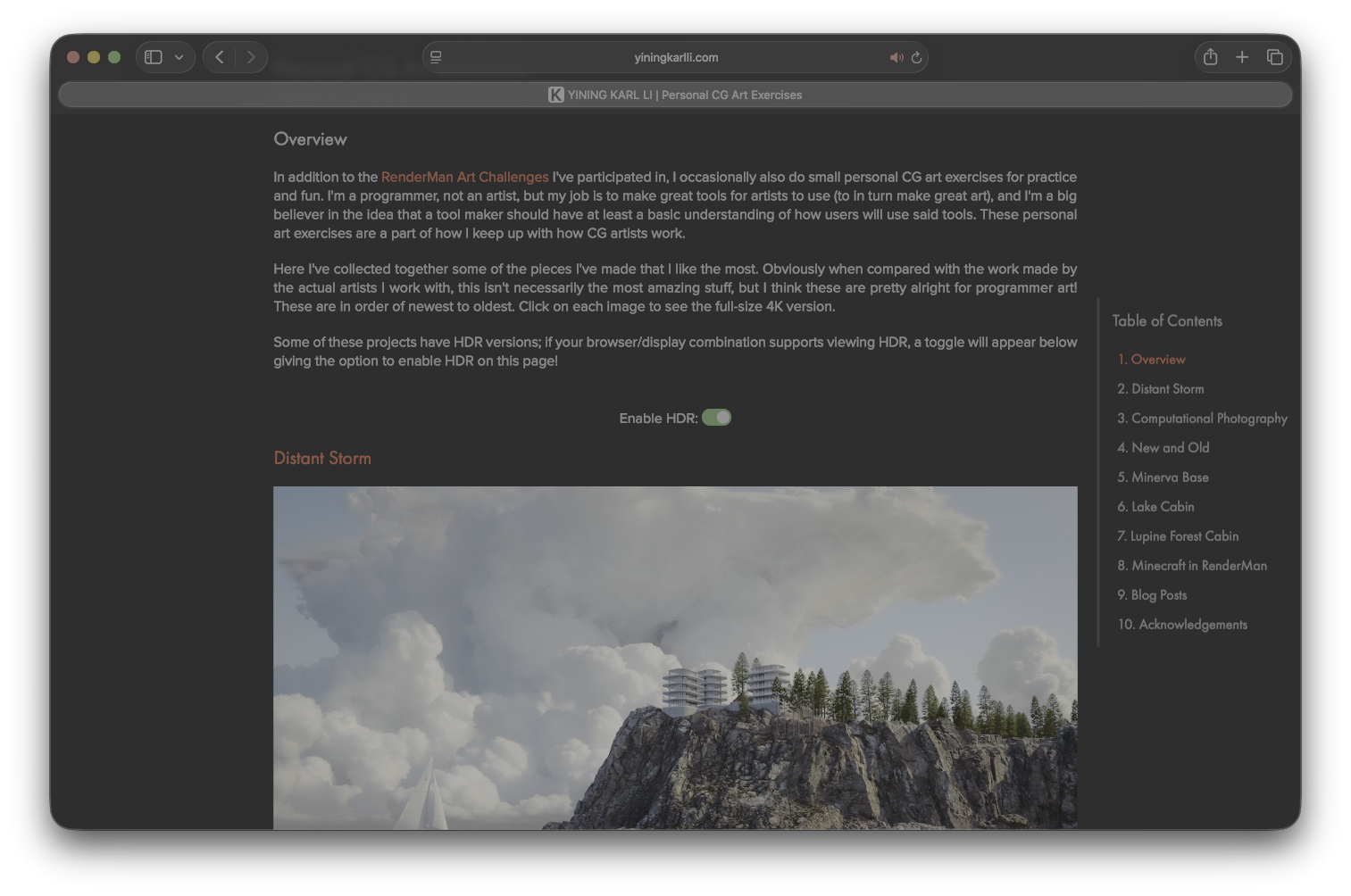
This next screenshot has a HDR version, so here’s the HDR toggle in action:
Toggling the switch does two things: first check the browser version in order to determine if HDR images are supported, and then second, based on whether HDR images are supported or not, hide all divs with class sdrand then unhide one of the two HDR divs.
Here is what the switch looks like on my Personal CG Art Exercises project page, in case you are reading on a display that is not HDR-capable:
One trick that I think is pretty nice is that the page will automatically switch between displaying the HDR toggle and the “HDR is not supported” message when the browser window gets moved between HDR-capable and non-HDR-capable displays.
This automatic update is done by listening for change events on the (dynamic-range: high) media query and calling the HDR setup code when the change event does fire, which is triggered when the browser re-evaluates that media query, which in turn is triggered by the user moving the browser window between displays.
I do wish that there was a way to display EXR files directly in a browser, with proper HDR display. Some Disney Research folks actually did open source an in-browser EXR viewer project called JERI a while back, built from the C++ OpenEXR library using Emscripten, but JERI only displays in SDR and requires exposing up and down to see the full range of data in the EXR file. As of writing, Chrome also has an experimental feature allowing HDR rendering from within a canvas element, so maybe there’s a path to true HDR EXR display in the browser by extending JERI using HDR canvas rendering. But that’s an idea for another day; for now, being able to display gain map HDR and HDR video in the browser is already pretty cool!
Knuth-Plass Style Justified Text Layout
The last and, in my opinion most interesting, new feature I added is Knuth-Plass-style justified text.
If you’re not familiar with some of the deeper details of how justified text works, then justified text may not sound like a particularly complicated or interesting feature.
After all, the text-align: justify property has existed in CSS since the very beginning of CSS!
However, for ages now, the conventional wisdom for text layout on the web is to always use left or right justification (depending on language) and never use justified layouts on the web.
The reason most of the web avoids justified text is because, well, justified text as rendered by modern browsers tends to be really ugly.
Justified text on the web tends to mean uneven spacing between different lines, creating typographical “rivers”.
In typography, there’s a concept called “type color” which basically means how dense text appears on a page; justified layouts on the web tend to produce uneven type color, or density, within each block of text:
Contrast with printed media such as books and magazines which tend to be typeset using QuarkXPress or Adobe InDesign, and with most academic papers which tend to be typeset using LaTeX; these are almost always typeset with justified text. Unlike the web though, justified layouts in print and academic papers look beautiful, with uniform density throughout:
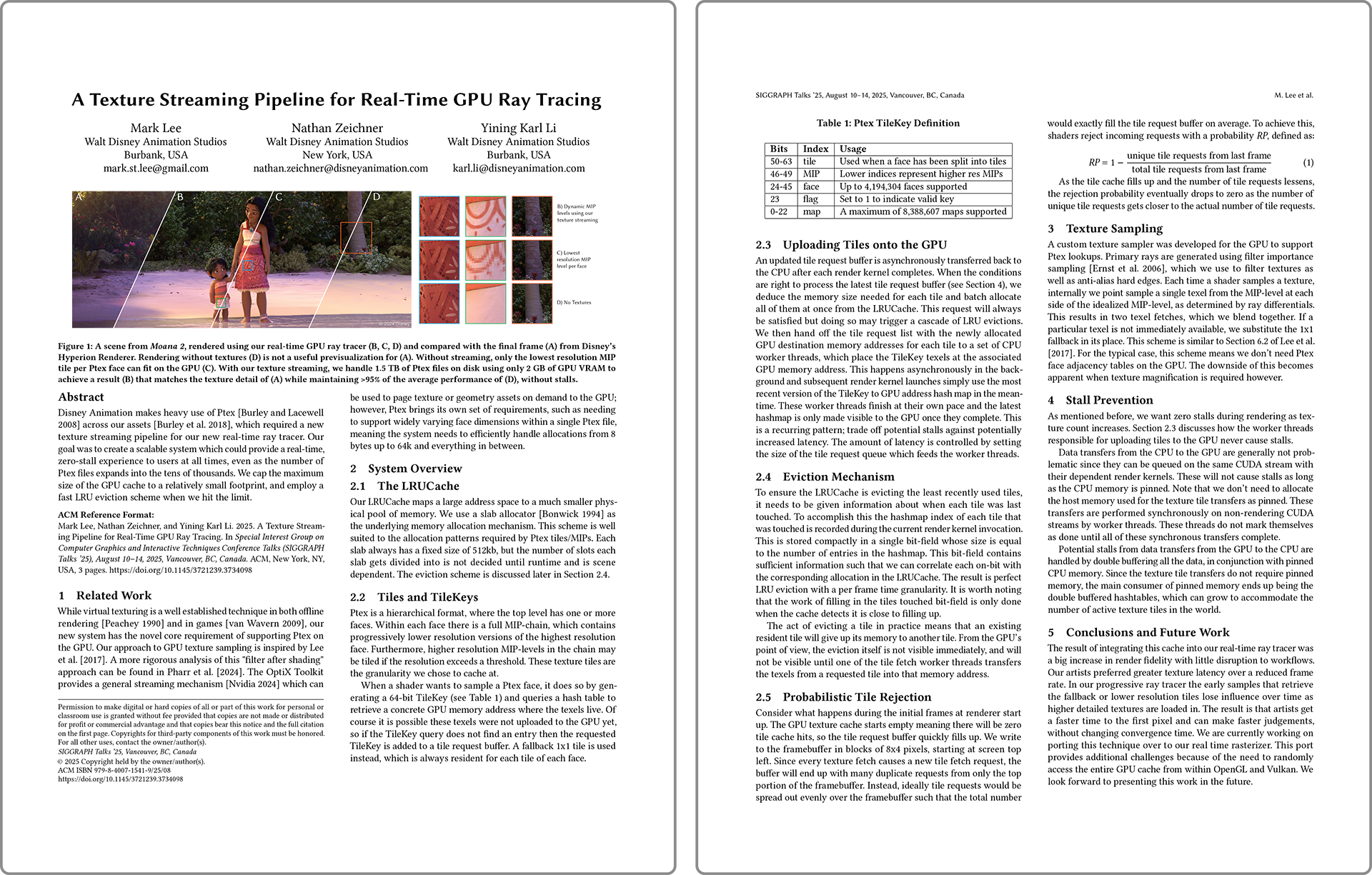
The reason justified text on the web tends to look terrible but justified text in print and in LaTeX tends to look great comes down to what algorithm is used to justify the text; not all justified text is created equal! Browsers use a simple greedy approach to laying out justified text, where words are put into the current line until the next word can’t fit anymore, and then spacing between words in the current line is simply adjusted until the line fills the entire width of the text column. However, the tradeoff for using a relatively dumb approach to justified text is that the dumb approach by being simple is also really fast, which becomes important for things browsers have to handle such as window resizing (which can force relayout for the entire page) or mixed / variable fonts, which make calculating spacing and widths more challenging.
In more recent browser versions, this simple greedy approach can be somewhat improved by adding the hyphens: auto CSS property.
This property allows the browser’s justified layout algorithm to be a bit smarter; for a word at the end of a line that don’t fit, the browser can try various hyphenation opportunities to break the word across lines.
If no workable hyphenation options are found, then the word gets pushed to the next line.
Using a greedy approach with hyphenation can get pretty far, but can still produce too wide spacing and rivers when hyphenation fails, and hyphenation can fail pretty often in practice.
Achieving ideal justified text layout that perfectly balances optimal spacing and hyphenation requires more than a simple greedy approach. In fact, for some richer document-layout problems such as pagination while factoring in global constraints, the problem can become NP-complete [Plass 1981]; even without sitting down and formally mapping it out, you can see how the optimal text layout problem has structural connections to the Knapsack Problem. For other more relaxed definitions of perfect the problem isn’t necessarily NP-complete but is nonetheless likely still practically challenging in a reasonable amount of time while still producing good results [Knuth and Plass 1981]. Fortunately, much like how the Knapsack problem can be solved in a good-enough fashion using approaches such as dynamic programming, good-enough solutions exist here too.
Global Optimization Across Paragraphs
The approach that print media and LaTeX use is global optimization across entire paragraphs, instead of greedy local optimization per-line. One of the more tried-and-true algorithms that is used for global optimization is the Knuth-Plass line-breaking algorithm (yes, that Knuth). The Knuth-Plass algorithm unifies the justified layout and hyphenation problems into a single algorithm which uses dynamic programming to minimize a global loss function across the entire paragraph [Knuth and Plass 1981], where the loss function mainly scores how much spaces must stretch or shrink, plus penalties for undesirable breakpoints such as hyphenation and consecutive flagged breaks. Modern variants can add other typographic heuristics for things like avoiding rivers or short last lines.
LaTeX famously uses the Knuth-Plass algorithm by default, and Adobe InDesign and QuarkXPress both implement variations as well. The tradeoff of the Knuth-Plass algorithm though is that relative to the simple greedy approach, in exchange for being much more sophisticated, Knuth-Plass can be far more computationally expensive to run. The simple greedy approach has a simple linear runtime complexity of O(n), where n is the total number of breakpoints to consider; in the greedy case without hyphenation, the total number of breakpoints really just means the total number of words since a break can only happen after a whole word. Knuth-Plass, on the other hand, has a theoretical worse-case complexity of O(n2), and here n breakpoints can be more than just the number of words since words can be hyphenated. In practice this can be optimized with heuristics to something like O(kn), where k is the number of words per line [Hurst et al. 2009]. Practically this means Knuth-Plass can be close to linear, but that k constant can have a big influence! This property of Knuth-Plass is the major reason browsers historically haven’t implemented Knuth-Plass justified text; it was considered potentially too computationally expensive.
Knuth-Plass in the Browser
Because browser windows are typically resizable, text layout in the browser has to run fast enough to keep up with a potentially continuously resizing dimensions, whereas in print media and fixed layout PDF files, text layout can be arbitrarily slow because it only needs to be done once.
CSS very recently gained a new text-wrap: pretty property that is meant to further improve browser justified text, but not every browser has support yet at time of writing, and even with this new option, the result still is not a globally optimized result.
As of when I’m writing this post, Blink implements text-wrap: pretty using a version of Knuth-Plass, but only for the last few lines of a paragraph to try to optimize away large gaps and dangling words on the last line, while Webkit implements text-wrap: pretty not using Knuth-Plass but instead using a similar full paragraph lookahead approach.
However, while no browser engine fully implements Knuth-Plass for justified text layout, there are several Javascript implementations floating out there.
Knuth-Plass has a reputation for being somewhat tricky to implement due to its dynamic programming approach, although I think that this isn’t so scary once you get into it. Admittedly though, I think the original Knuth-Plass paper is a challenging read and while I found it interesting, I had a bit of a hard time building an understanding of the algorithm from the paper. The original paper isn’t really written like a modern algorithms paper; it is very long, requires a bunch of definitions before getting to the core algorithm, and goes on a lot of detours. There’s like six entire pages dedicated to a brief history of multi-lingual editions of the Bible; interesting stuff, but definitely somewhat meandering! There’s a great article by Peter West that somehow both is by far the best summary of the original paper I’ve come across [West 2007] and also is just as inscrutable as the original paper (if not more so) if one is trying to build an understanding of the approach from scratch. I found that this article by Jacob Smith was a far more useful and approachable guide [Smith 2018]; I referred to this one a lot for this project.
There are already several great Javascript implementations of the Knuth-Plass algorithm out there, and I found that going through these alongside the paper and the Peter West and Jacob Smith articles was really helpful. How did the people who wrote these implementations do it without having another implementation to consult? The answer is that they’re probably a lot smarter and more patient than I am! The two reference implementations that I found to be the most helpful were Bram Stein’s “typeset” project, and Robert Knight’s “tex-breakpoint” library. Interestingly, Bram Stein’s implementation was apparently done as part of some initial exploration that was done some 15 years ago into implementing Knuth-Plass in Firefox, but evidently this effort didn’t go anywhere. While these existing implementations were really useful for better understanding the algorithm, I found that just dropping them onto my site and calling it a day wasn’t a viable approach, because in practice these existing implementations don’t have the best performance once applied to real use cases.
Measuring Text Widths in the Browser
There is a fundamental limitation in how Javascript interacts with the browser that makes implementing Knuth-Plass with decent performance challenging.
Knuth-Plass requires measuring text metrics such as the width of individual words, and both of the common ways to do this are pretty expensive.
One approach is to wrap each individual word in its own <span> and then call getBoundingClientRect() on said <span>.
Unfortunately this approach is insanely slow, because calling getBoundingClientRect() on any DOM node forces a layout flush that in practice can often mean a reflow of the whole page: the browser has to synchronously halt Javascript execution, flush all queued CSS changes, and potentially re-render the entire page if invalidation occurred before performing the measurement needed to return an answer to getBoundingClientRect().
Doing this for every single word in a paragraph means potentially hundreds of reflows just to get the basic information needed to run the Knuth-Plass algorithm; this is already bad enough, and then for really long pages this process may need to be repeated for dozens to hundreds of paragraphs.
The other main approach to measure text widths in Javascript is to use the Canvas API’s measureText() function, which under the hood works by directly calling the browser’s font engine, bypassing the need to do super slow DOM reflows.
However, the measureText() approach comes with a major catch: while in theory the measured width from measureText() should match the result from getBoundingClientRect(), in practice this may not be true!
These two approaches use fundamentally different codepaths under the hood, and differences in subpixel character rendering and font kerning and ligature rendering and such can mean the results from the two approaches can drift [Gündel 2018].
Over time this has gotten better; as of writing, the latest versions of Chrome (Blink) and Safari (Webkit) both mostly give pretty closely matching results with occasional mismatches, but Firefox (Gecko) still exhibits considerable drift.
Even though the differences are typically relatively minute per word, the drift can accumulate over many many words, leading to significant discrepancies between what we think word widths are via Canvas measurement versus how they are actually laid out in the DOM, and when used for Knuth-Plass, this means our justified text might not line up perfectly, or hyphenation choices can be made incorrectly, or any other number of issues.
I’ve always liked the look of Knuth-Plass justified text way more than the left-aligned standard on the web; I’ve always found books and magazines and academic papers laid out this way to have much more pleasant visual and reading experiences than long-form text on the web. I had at various points in the past considered trying to implement Knuth-Plass justified text on my own in Javascript on my site, but I never did because of the above practical challenges. Then, earlier this year in March, Cheng Luo released a new library called Pretext, which inspired me to come back to this idea.
The Pretext library does two things: first, it implements a really fast path for accurately measuring text widths that bypasses touching the DOM, and second, it implements a really fast layout path that is purely arithmetic based and therefore also bypasses touching the DOM.
The measuring step is built on top of measureText(), but crucially is quite a bit smarter than just calling measureText() per word.
Instead, Pretext calls measureText() at grapheme resolution to account for ligatures and kerning, applies browser engine specific fit tolerance adjustments, and also encodes/applies a bunch of browser-specific text analysis rules before carrying out measurement, which makes sure that the segmentation measurement uses matches the browser’s layout engine.
Pretext’s measuring system notably also supports a dizzying array of different languages and even emoji characters, all of which present their own complications to measurement.
All of these are tuned using a brute force validation system, which gives Pretext a super high degree of accuracy for matching to what the DOM is really doing.
Pretext does all of this once per prepare() call and caches everything.
Using the cached measurements, Pretext is then able to run custom text layout extremely quickly by calculating line breaks using pure arithmetic; you give Pretext the line dimensions that you want, and Pretext will just add up word widths and spaces until it overflows the maximum line width, upon which a line break is placed.
No individual piece of Pretext is necessarily a new idea (in fact, the two libraries I mentioned earlier use a simpler version of the same measureText() approach Pretext uses [Stein 2012, Knight 2018]), but Pretext combines it all into a single, easy to use, super powerful library.
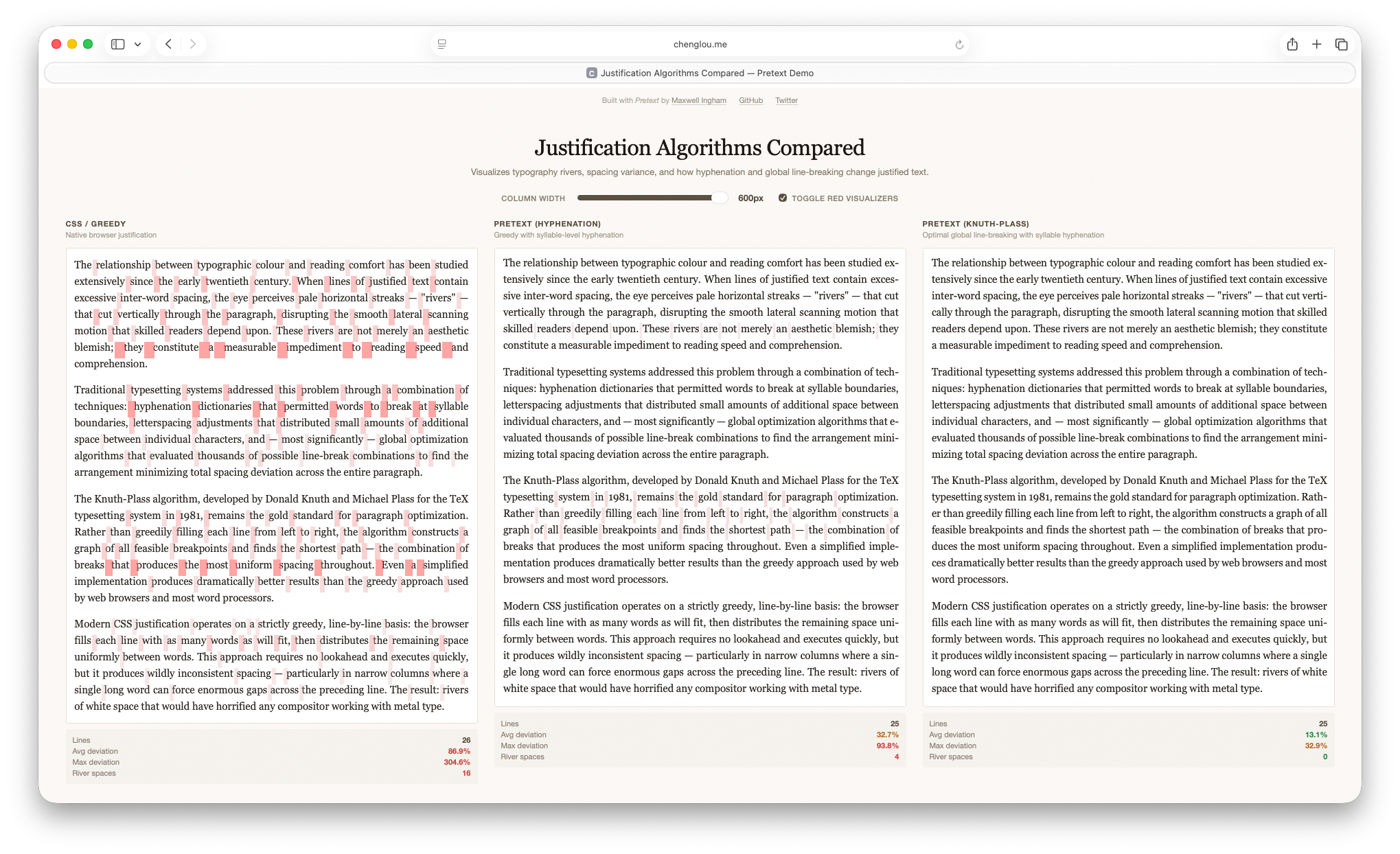
There are a whole bunch of cool flashy demos of what can be done with Pretext, but the one demo that really caught my eye was… a small implementation of Knuth-Plass styled text justification using Pretext’s measurement system! Seeing this demo made me realize that using Pretext’s fast width measurement and caching implementation, I could probably build a usable Knuth-Plass styled justified text layout engine. Actually, the really important insight that this demo unlocked is that I don’t need a full implementation of the Knuth-Plass algorithm; instead, I just need to implement enough ideas from Knuth-Plass to get good looking justified text layout for my specific needs, and I could ignore any other part of the algorithm that I don’t need. The Pretext Knuth-Plass demo does exactly this: it implements quite a lot of the full Knuth-Plass approach, but not all of it; only enough for the demo is actually implemented. So, the idea I settled on was: instead of trying to retrofit one of the existing Javascript Knuth-Plass libraries onto my site and make it performant, I instead would try to build a minimal Knuth-Plass inspired solver on top of Pretext, implementing only what is absolutely needed while simplifying as much as possible to keep performance reasonable.
My Implementation Part 1: Overall Structure, Segmentation and Measurement
The layout system the site now uses is built around a couple of key ideas and takes advantage of several key in-built assumptions around how my site works. The single most important concept that the system is built around is independent paragraph-level solves with a progressive scheduler. Since my writing style tends to use relatively short paragraphs, solving text layout for individual paragraphs in my writing is pretty fast even with a more complex algorithm. So, the way my layout system works is: on page load, the system goes through and segments all body text into individual layout work units, with each unit being essentially a paragraph (or in the case of captions and other things, potentially smaller chunks of text). All body text starts as left-aligned but is hidden on load, to prevent visible flashing as paragraphs are laid out and re-rendered. After body text has been segmented into work units, the work units are placed into a waiting queue to be processed; paragraphs that are in the visible viewport (plus some buffer above and below the viewport to account for differences in final paragraph height between left-aligned and our custom justified layouts) are marked and placed at the head of the queue. The layout system then flushes, solves layout for, and renders, and unhides as many paragraphs as it can from the queue in an 8ms frame budget before returning control to the browser and then picking up where it left off on the next frame.
Because the system always returns control to the browser every 8ms, resizing the browser window remains completely smooth and doesn’t visibly stall while waiting for text layout to finish running. When the browser window does resize, existing layout work is halted, and the entire queue is discarded and rebuilt with ordering recalculated to place whatever is now in the resized viewport at the highest priority in the queue. Even on my 12 year old 2014 11 inch MacBook Air, with the browser window taking up the entirety of a 4K external display, this approach allows my website to run custom text layout and justified text rendering in the visible viewport with essentially zero visible lag or flicker. Text layout and rendering for the remaining text outside of the viewport can take a bit longer, but even for the longest posts on my blog, the system typically finishes laying out and rendering the entire post within at most a few hundred ms. Here is what my system produces compared with the browser-native greedy approach with hyphenation; I think my system’s result is considerably nicer than the greedy approach even with hyphenation.
Text layout and rendering happens in three distinct phases: text segmentation and measurement, the core layout solver, and then rendering back into the DOM. There are two segmentation and measurement frontends, which both feed a single unified Knuth-Plass style solver, and then there are three different rendering backends depending on the complexity of the individual paragraph being processed. Any combination of frontend paths and backend rendering paths can be used together, since everything routes through the same common solver in the middle.
Originally my plan was to just use Pretext for all text segmentation and measurement; after all, Pretext implementing everything needed for a good, fast segmentation and measurement system was the whole reason I decided to try implementing this system!
However, as of when I’m writing, Pretext has a hard requirement that all input text be the same size and font and be plaintext: no fancy CSS decorations or whatnot applied.
This requirement means that paragraphs containing mixed fonts or styles, inline boxes, and whatnot cannot run through Pretext for segmentation and measurement.
For most paragraphs on my blog, this requirement is not a problem, but on occasion I do have paragraphs that contains some bold or italicized text, or contains embedded code snippets which use an inline box style combined with a monospace font (Berkeley Mono) instead of the standard body text font (Proxima Nova).
For these paragraphs, I wound up implementing my own segmentation and measurement fallback codepath.
This fallback path broadly basically looks like a slower, dumber, but more general version of Pretext’s segmentation and measurement system; Pretext uses Javascript’s built in Intl.Segmenter system for smart locale-aware text segmentation, whereas the fallback path just does a simple white-space delimited word-level segmentation strategy.
I found that the fallback path being slower generally was not a major problem since the vast majority of the paragraphs I write are plaintext and therefore can run through the faster Pretext path; being able to take advantage of inbuilt assumptions like this is one of the nice advantages of building something that is specifically tailored to only me!
My Implementation Part 2: Core Dynamic Programming Solver
I call the solver at the center of my system “Knuth-Plass styled” instead of just “Knuth-Plass” because it implements the high level scoring and dynamic programming approach that Knuth-Plass does, but differs in a lot of details and simplifies or just outright ignores some stuff that I found I didn’t need. The Knuth-Plass algorithm is characterized by a couple of important properties. The first property is the scoring system for evaluating line break candidates. In the greedy approach, the way scoring effectively works is that the algorithm is trying to minimize the difference between the maximum line length and current line length by appending words to the current line, but without ever going over the max line length. In Knuth-Plass, there still is a maximum line length, but there’s also an ideal line length that is something less than the maximum line length. The maximum line length still serves as a hard cutoff, but the specific value Knuth-Plass is trying to minimize is the square difference between the current line length and the ideal line length; going over or under the ideal line length by some amount is okay and even preferred sometimes. In both cases, after a line break has been found, then spacing is added or removed to the line to get its length to match the maximum line length. In the greedy approach, making successive lines as close to optimal as possible tends to then result in a line that severely underrun the maximum line length, requiring wider spacing to be added in, while Knuth-Plass by having a range of acceptable lengths, may not ever pack any given line as optimally as the greedy approach can, but on a whole will keep packing more even across all lines. However, achieving this property efficiently requires the second key property of Knuth-Plass: dynamic programming.
Dynamic programming is a fancy sounding name that you probably remember from algorithms class, but in the Knuth-Plass case it actually refers to something relatively straightforward. To find the best set of line breaks for a paragraph, the obvious approach is to find all possible candidate line breaks, score all of them using “demerits”, and then pick the lowest scoring set of line breaks. In the Knuth-Plass algorithm, this step is done using a recurrance relationship: for a given candidate breakpoint j, the best way to reach j is from the best previous breakpoint i, plus the cost of making the text from i to j into one line, where cost is defined by some badness metric. So, starting from the beginning of a paragraph, Knuth-Plass finds a set of feasible next breakpoint candidates, scores them, and then for each of those candidates, finds the next set of feasible breakpoints, and so on and so forth until the end of the paragraph is reached. Then, the algorithm walks backwards from the end of the paragraph to construct the lowest score walk back to the start of the paragraph, which gives the final set of line breaks.
Unfortunately, the number of combinations of all possible breaks in a reasonably-lengthed paragraph is absolutely vast, and made even more so if the segmentation granularity is small enough to allow for things like hyphenation. Naively, as discussed earlier, trying every previous breakpoint i for every later breakpoint j produces quadratic runtime complexity. The clever bit in Knuth-Plass is how it sidesteps this problem. In the original paper, Knuth and Plass observe that if a line from i to j already is too long to fit into a single line, then all future lines as j advances will also be too long, so i can be culled entirely from further consideration. The remaining candidate breakpoints that can still produce valid paths is called the active list. By detecting and culling impossible paths, Knuth-Plass brings the runtime complexity down to close to linear in practice.
My implementation uses the same active list solver based dynamic programming approach from the original paper along with a somewhat simplified version of the same demerit system, but takes a lot of liberties with the scoring system. A major simplification I made is in dealing with the concept of “glue”. Knuth-Plass thinks of paragraphs as being composed of boxes, glue, and penalties, where boxes are fixed-width things like words, glue are flexible spaces that can squash and stretch, and penalties are optional breakpoints such as hyphens that incur a penalty cost. The full Knuth-Plass algorithm treats each glue component as capable of independent squash and stretch, whereas in my implementation, all spaces across the same line are treated as always uniform in width. Another major simplification (really omission) is in fitness classes. Knuth-Plass buckets lines into fitness classes based on how tightly or loosely packed they are and factors this into calculating demerits; I just… completely ignore this. For applications like packing text into non-uniform-rectangle shapes (such as for flowing around figures), this fitness system is pretty important to maintaining even density across paragraphs, but I found that for my use case, which is only ever rectangular paragraph blocks, not having it generally still produces decent results and simplifies the implementation a bit.
Some other major differences are in how my implementation deals with last-line behavior and hyphenation. In my system, no attempt is made at all to get the last line in a paragraph to be justified (but it must still fit in the maximum line width), whereas Knuth-Plass puts in a best effort to keep the last line justified if possible. Also, Knuth-Plass uses a fancy pattern-based hyphenation system, whereas mine just uses a pile of hacked-together heuristics along with a manual override list for specific words that I’ve found to be problematic.
In the rare cases where the solver fails to find a good justified layout for the paragraph, I implemented a retry system that loosens various thresholds and attempt layout again, and repeats a few times with successively looser requirements. If still no solution is found after several retries, the system simply gives up and falls back to the default left-aligned layout for the paragraph. I don’t have any specific metric or system for detecting and preventing typographic rivers, but I found that generally when the solver finds a good layout, simply by nature of the layout being relatively evenly packed, rivers tend not to be a problem.
In general I think one particularly neat thing about the Knuth-Plass algorithm is how amenable it is to being adjusted and tweaked; the core concepts hold up even when a lot of the implementation details are changed and moved around. The original version of the algorithm was meant for static text layout in TeX, but I’ve found that with my simplifications, it works great for my site as well. Another cool example I ran across is a set of adaptations to make Knuth-Plass work for finding line breaks for music notation with lyrics [Crow 2026]. Indeed, Donald Knuth has stated before that he both expected and intended for the algorithm to be changed and extended to suit different needs.
My Implementation Part 3: Rendering Back Into the DOM
After finding an optimal set of line breaks using the solver, the last remaining step is to render the results back into the webpage’s DOM. My system has three different rendering paths, named roughly for how each one works: “line clone”, “tree replay”, and “inline flow”. All three rendering paths take the same input, which is just the output from the Knuth-Plass style solver, and the main thing that must be done is find a way to map solver-space word and line break positions back into DOM-space. Also, all three paths begin on a normalized version of the text that was captured during the segmentation and measurement step. The choice of which rendering path to use is made on a paragraph by paragraph basis.
The “line clone” backend is the simplest and fastest of the three backends; it only operates over plain text and takes advantage of a plain text assumption to be really simple and fast.
Since most paragraphs on my blog are plain text, this backend is by far the most commonly used one.
This backend builds a text-node index over the original DOM, maps each solved normalized line range back to raw textContent offsets, creates a DOM Range, clones that range with range.cloneContents() (hence the “line clone” name), wraps the clone in a custom span, and appends one span per solved line.
Spacing is handled using CSS’s word-spacing property with widths calculated by the solver, and CSS is also used to make sure each line doesn’t accidentally wrap.
The “tree replay” backend is most capable backend, but is also by far the most complex and slowest. This backend supports paragraphs that have inline markup, links, mixed fonts, and so on and so forth. Before rendering, this backend snapshots the entire DOM tree for the paragraph and builds normalized-text boundary arrays to track where inline elements begin and end and if their range spans a normalized boundary. The backend then rebuilds the paragraph from the normalized text and boundary information by walking every normalized boundary, appending hyphens as needed, closing inline elements whose ranges end at a boundary, inserting breaks, opening new inline elements whose ranges need to start again after a break, and insert spaces as needed. As you can see, this backend is named “tree replay” because it replays the entire process of constructing the paragraph’s DOM tree, modified to account for our solved line breaks. The most important reason for going to all of this effort is to preserve a continuous inline tree across inserted line breaks; without this property, a link that spans lines will get broken into two separate links (one on each side of the break), whereas with this approach, links correctly stay as one single link when spanning lines. Keeping links as a single link across lines may seem like a small detail, but I found that the alternative feels really bizarre; when I hover my mouse over a link, I expect the whole link to get highlighted across lines; I don’t expect only the part of the link on the current line to get highlighted!
The “inline flow” is essentially a much simpler version of the “tree replay” backend. Instead of rebuilding the entire DOM tree, this backend keeps the existing tree and replaces only text nodes by walking each original text node character by character while mapping solver offsets to normalized offsets, and then inserts breaks where needed and inserts fixed width spans wherever spacing adjustments are needed. This approach solves the same multi-line link preservation issue that the “tree replay” backend does, but this approach only works for links. So, this backend is essentially a fallback path that only works for paragraphs that, other than having links, are otherwise all plaintext. Actually, because this backend involves so much DOM churn, in practice “tree replay” is often faster than this backend unless the paragraph is really short, so this backend is not really used that much at all. It’s only around because I implemented it before I implemented the “tree replay” backend, and I’ll probably eventually remove it whenever I get around to it.
My Implementation Part 4: Fallbacks and Debugging
One minor downside to the way all three rendering backends work is that they all break text selection.
Text selection and copy/paste still mostly works (as opposed to if I had used a pure canvas-based solution), but because the layout is enforced using tricks such as fixed-width spans and hard <br> tags, copied text may not flow correctly when pasted into an editor.
I’m not really worried about this downside since the primary goal was to build a good visual reading experience, but as a fallback in case a user really does want to select and copy/paste text, I added an option in the site’s settings pill to switch between a normal vanilla left-aligned layout and the fancy custom Knuth-Plass style justified layout.
Since the left-aligned mode isn’t doing any custom layout work under the hood, selection and copy/paste work as they normally do.
For now left-aligned is also the final fallback behavior for paragraphs that the custom layout system fails on for whatever reason. I suppose falling back to browser-native greedy justification with hyphenation would probably be more visually cohesive, but I find having a more visually jarring last-resort fallback path to be more useful for quickly spotting when this happens so that I can go debug it. In practice this doesn’t happen really at all anymore anyways.
Another small downside is that for links that span across a line break, the “tree replay” system breaks how underlines on mouse hover work. Because of this quirk, for links that span line breaks, I have a small amount of custom CSS that recreates the underline on hover. On Chrome and Firefox, the result is pretty much seamless, but on Safari, there’s a small downside. Safari handles underlines in a slightly more fancy fashion; on Safari, underlines have gaps whenever a text descender overlaps the underline. I don’t have a way to easily recreate this effect via CSS, so my recreated underlines on Safari look subtly different from native Safari underlines. I think this is an acceptable drawback for now though; maybe at some point I’ll revisit this issue.
To help with debugging, I also built a small visualization and debug tool.
This tool is just an extra script that, when active, draws boxes around each independent work unit considered by the layout system and marks what combination of measurement/segmentation codepath and backend rendering codepath were used for that work unit.
In the event that a paragraph fails layout, the debug tool shows the reason why layout failed and any relevant debug output or errors.
Here is what the debug tool looks like in action:
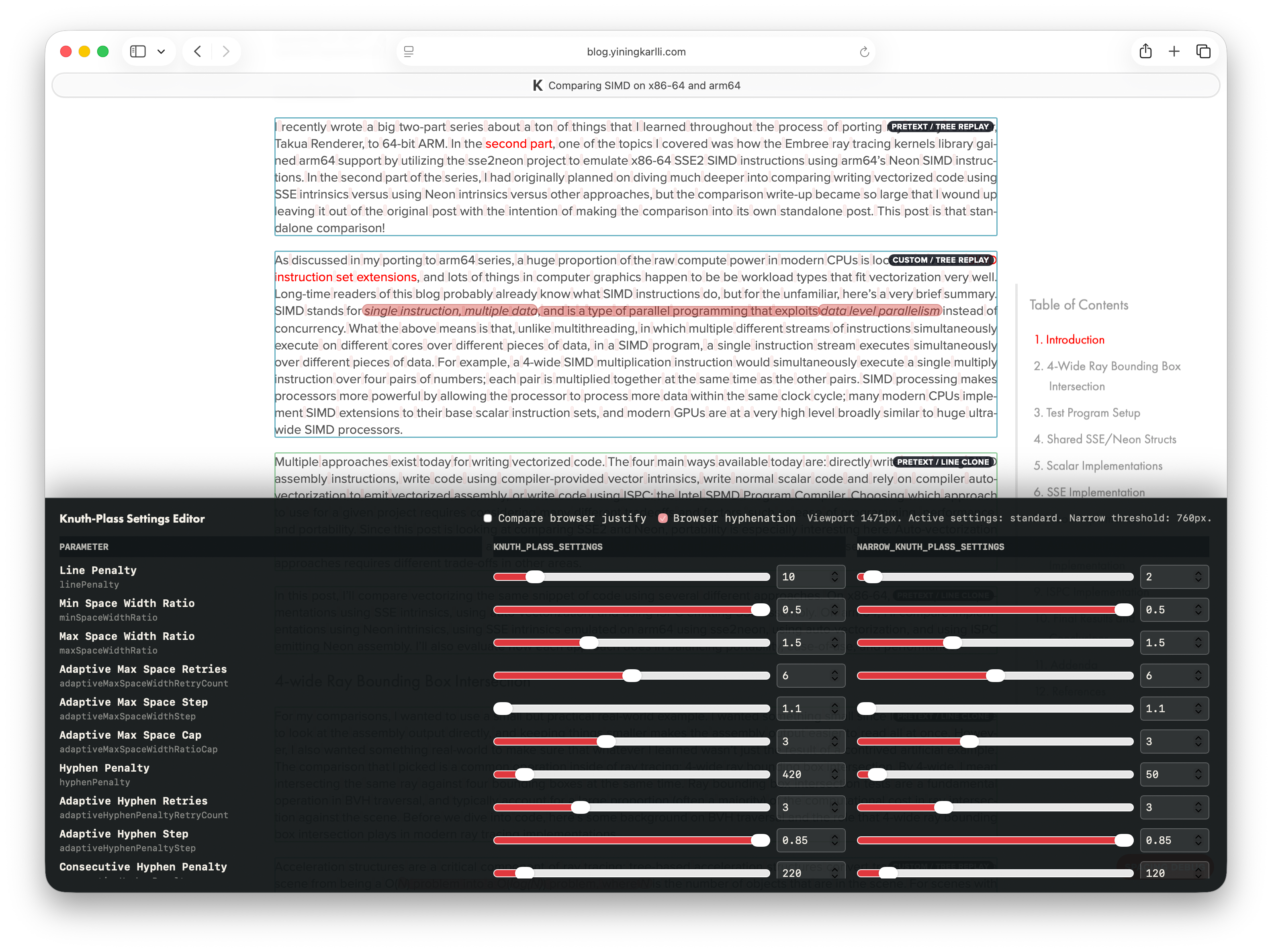
The debug tool also has a basic set of sliders to interactively tune the various different heuristics, settings, and thresholds that drive the whole system. I found that having an interactive tuning mode was really useful when I was trying to adjust the spacing to work well on smaller, narrower mobile layouts. I didn’t put really any effort into optimizing the debug tool, so it definitely chugs a bit when running. However, it’s not served up as part of the published site, so I didn’t worry about it. The published site serves all Javascript in minified form with debug utilities and such either stripped or blanked out.
Overall the entire custom justified text layout system works a lot better than I had dared hope it would, and even on pretty old hardware it is usably fast. Even with the layout system, I measured that my site still loads far faster than most big popular websites do. That being said, I’m still feeling out how the site looks and feels with the justified text layout on by default; it still feels like an awful lot of code and computation just for some nicely spaced text. I currently think there’s maybe a 60% chance that by the end of the year I’ll still have it as the default; we’ll see!
Conclusion
Over the past few years I’ve slowly been dragging this site’s layout and design into something vaguely up to date with modern standards, while trying to keep things reasonably performant and without going overboard with superfluous design elements and such. I’m pretty happy with this latest set of changes; for me, a lot of the point of having a personal site is to have a place that I can make work exactly the way I want it to and sweat all of the tiny little details, no matter how insignificant. The Knuth-Plass style justified text definitely falls into that “sweat the details” category, especially given the huge amount of effort it took when weighed against the reality that likely most readers won’t even notice it (but I notice it!). With this latest set of changes, I think I’ve gotten things to a place where I can leave it alone for a while. Who knows though; last year I said the same thing and as this post proves, that didn’t turn out to be true at all.
For me, working on personal website stuff is always a weird tradeoff between wanting things to work well and look nice versus the fact that I do not really enjoy doing web programming stuff. Everything in the web space just feels way more complicated than it has any reason to be, and that’s saying something given my day job. I also don’t consider myself to be particularly good at web stuff because it’s just not something I spend a lot of time doing except for every once in a while when I get back around to fixing up my site. For the sidebar table of contents, dark mode, and Knuth-Plass style justified text layout implementations, I thought I’d give Codex and Claude Code a try, since those tools have been all the rage recently. I’m deeply skeptical of generative AI for image and video generation and things like that, but for code assist, I thought it looked interesting enough to give it an initial try on something low stakes like personal website stuff.
Porting my portfolio site to use the same layout and stylesheet as my blog site was a great first test for Claude Code; I spent an early Saturday morning to do an example port of one page by hand, pointed Claude Code at the example as a template and set it up with Playwright, walked away to go spend the day playing with my daughter, and came back after her bedtime to find the whole port done. After checking through everything and fixing a few small things that Claude missed, everything was good to go for moving on to the dark mode implementation. For the Knuth-Plass style text layout implementation, out of curiosity, I initially tried just letting Claude and Codex attempt to one-shot the whole thing, and the result for both was a complete disaster. They both certainly produced something, but both results barely worked, were filled with all kinds of weird bugs and quirks, and had absolutely atrocious performance. I guess I wasn’t super surprised by this, but at the same time, it was interesting to see how far they got on their own. For the actual implementation, I took a far more conservative approach; I wrote out the entire algorithm myself as essentially pseudocode so that I wouldn’t have to worry about Javascript syntax and details initially, then translated this initial pseudocode into working Javascript using manual coding for some parts and AI code assist for other parts, and then iterated a bunch on top of that. For parts that I implemented manually, I still found it useful to be able to ask the AI assistant for help when I couldn’t remember or didn’t know how some specific Javascript or DOM thing worked. This approach generally produced reasonable results, but I had to check every line myself to make sure things stayed reasonable. There’s quite a lot of debate online about Codex versus Claude, but at least for this project I found them to be pretty much interchangeable in terms of results when using models with similar capability levels.
I found using AI code assist in this way to be pretty helpful; I certainly finished the project quite a bit faster than I would have otherwise (although still way slower than the AI vibe-coding enthusiasts claim possible), and I learned quite a lot through the process. I suppose one could argue that I could have learned even more had I just ground against the project without using AI tools, but I think the likelier outcome is that I just wouldn’t have bothered doing this project at all. My goal here wasn’t to spend all of my time mastering web programming stuff; my goal was just to build what I wanted to build in the vanishingly small amount of free time that I now have outside of all-important family time. On a whole though, my feelings are mixed on AI code assist; taken in isolation, the technology is undeniably useful and is a good tool to have available, but using AI code assist responsibly takes far more care and thought than the loudest AI enthusiast voices would have you believe. In my opinion there’s a huge amount of AI psychosis going on out there leading to some wildly silly takes by tech folks. Also, the larger overwhelmingly negative societal impacts of the generative AI industry loom large.
I’m not above using AI code assist to help with developing infrastructure for my site, but I refuse to use it for generating the actual content of my site. On my site colophon I’ve had a guarantee for a while now that the text, images, and general content of this blog will never be made by AI; if you’re going to take the effort to come here and read what I’ve written, then I will take the effort to make sure that what you are reading is in fact written by me.
I don’t have any plans for or interest in making all of the things described in this post into a proper open-source project or library or npm package or whatever. Everything here really falls under the category of houseplant programming [Robertson 2025], which is to say, it’s all custom tailored for only my site and is really closely coupled with the specifics of my site (especially the Knuth-Plass style justified text layout system, which has a ton of site-specific hardcoded dependencies and assumptions). I built it all just for me. However, if you did want to take a look at how things are implemented out of curiosity, I’ll always keep a copy of the non-minified latest versions around under a MIT license. Feel free to poke around and borrow/repurpose things for your own use, but I’m not going to provide any support or a proper repo for any of this stuff. Here are the non-minified files, but be warned that it’s likely not the best Javascript you’ve ever seen. I think the code is still better than pure vibe-coded spaghetti, but given that I’m not a very good Javascript programmer and that this is all houseplant code, it may not be better by much:
- custom.js: implements most of the site’s core functionality
- pretext-layout.js: implements the Knuth-Plass style justified text layout system. The name is a bit of a misnomer; it started as just some experiments on top of the Pretext library before growing into its own thing, but I never changed the name.
- pretext-spacing-visualizer.js: implements optional visualization and debug utilities for the Knuth-Plass style justified text layout system.
Okay, that’s pretty much all I can think of to write about this latest set of website updates. On one hand I’m pretty happy with where the site’s design and layout is now and there’s not much more I can think of that I want to tweak on the site for now, but on the other hand, I thought the same thing the last few times too. So who knows; we shall see!
References
Basil Crow. 2026. Relaxing Knuth’s Restrictions: Break-Dependent Widths in Optimal Line Breaking. In Basil Crow’s Weblog. Retrieved May 20, 2026.
Fabian Gündel. 2018. Text Measurement in the browser. Retrieved May 20, 2026.
Nathan Hurst, Wilmot Li, and Kim Marriott. 2009. Review of Automatic Document Formatting. In DocEng 2009: Proceedings of the 9th ACM Symposium on Document Engineering. 99-108.
Robert Knight. 2018. tex-breakpoint. Retrieved May 20, 2026.
Donald E. Knuth and Michael Frederick Plass. 1981. Breaking Paragraphs into Lines. Software: Practice and Experience 11, 11 (Nov. 1981), 1119-1184.
Cheng Luo. 2026. Pretext. Retrieved May 20, 2026.
Michael Frederick Plass. 1981. Optimal Pagination Techniques for Automatic Typesetting Systems. PhD thesis, Stanford University.
Hannah Robertson. 2025. An Ode to Houseplant Programming. Retrieved May 20, 2026.
Jacob N. Smith. 2018. Knuth Plass Thoughts. Retrieved May 20, 2026.
Bram Stein. 2012. TeX Line Breaking Algorithm in Javascript. Retrieved May 20, 2026.
Peter B. West. 2007. Knuth & Plass Line-breaking Revisited. Retrieved May 20, 2026.
Footnotes
1 By HDR, I mean images and video that have brights that go beyond the maximum 1.0 brightness in SDR images and videos, as opposed to the thing where highlights and shadows from multiple exposure brackets are blended into an HDR image and then tone-map back down into a single SDR image. So, by HDR, I mean gain-map based photos (what Apple calls Adaptive HDR and Google calls Ultra HDR), and things like Dolby Vision and HDR10/HDR10+ video. keyboard_return